


An older Android TV slows down after a few years, the menu stutters, and the home screen gets flooded with ad rows you never asked for. YouTuber Ansub Khan figured it out his own way, and his process blew up on the internet within days. Artificial intelligence Claude Code got a longer command and it cleaned his TV over Wi‑Fi from unnecessary apps and ads.
He published the process for free as the TV Detox project, and in four days the video has over 826 000 views. We’ll show you what you’ll need, how to do it step by step, and what to watch out for so you don’t mess up your TV.
What TV Detox does to the TV
Claude Code connects from your computer to the TV via the ADB debugging tool, goes through all installed apps, and sorts them into those you can safely disable, the ones your TV needs, and the ones you actually use. With your permission, it then turns off preinstalled clutter, tracking services, and ad rows, blocks automatic installs, and after turning it on your TV won’t immediately boot into live broadcasting.
Finally, it installs a new home screen without ads, showing only your apps, HDMI inputs, and the clock—and according to the author it uses only about 30 MB of memory. Nothing is deleted; the apps are just disabled, and you can undo everything with the undo.sh script. The author had roughly 90% more free memory after the change on a TV with 2 GB RAM, but he measured it on only one unit, so yours may turn out differently.
The full process on a real TV is shown in a four-minute video:
On which TVs it works
TV Detox is intended for TVs and boxes with Android TV or Google TV. In Slovakia, it covers a large portion of older TVs from TCL, Hisense, Philips, Sony, or Xiaomi, plus TV boxes, Chromecast with Google TV, or Nvidia Shield. The author tested it on Android TV 9, 11, and 12 and on Google TV 14, and each change is automatically tested mainly on emulators, not on dozens of real TVs.
- Amazon Fire TV works only partially: you can clean the apps, but it won’t let you change Amazon’s home screen.
- Samsung (Tizen), LG (webOS), and Roku don’t work at all because they don’t run on Android. For LG, at least disable in the home screen settings the Home Promotion and Content Recommendation items.
- Android projectors usually yes, if they have Developer Options and USB debugging in the menu.
If you’re not sure what system your TV has, check Settings → About/Information, where the Android or Google TV version is listed.
What you’ll need
- TV or a box with Android TV or Google TV,
- a Windows or macOS computer connected to the same network as the TV (Wi‑Fi and cable are fine),
- Claude Code by Anthropic or Codex by OpenAI, both run directly on your computer and both require a subscription of $20 per month (about €18),
- remote control and about half an hour of time.
A regular chat in the Claude app or on claude.ai isn’t enough, because it runs on Anthropic’s servers and won’t reach your TV on your home network until Claude Code works directly on your computer.
Step 1: Turn on Developer Options on the TV
- On the TV, open Settings and go to Device Preferences (somewhere it’s called System), then to Information.
- Find the Setup item (in English: Build) and press OK on it seven times in a row until a message appears that you’ve become a developer.
- Go back one level, open Developer options, and enable USB debugging. If you also see Network debugging or Wireless debugging, enable that too.
- When you connect a computer to the TV for the first time, a prompt will appear asking whether you want to allow debugging. Check „Always allow debugging from this computer“ and confirm.

Item names may differ slightly depending on the brand and the OS version. On some TCL or Philips TVs, you’ll find Setup directly under System information.
Step 2: Launch Claude Code and paste the command
- On the computer, open Claude Code (or Codex) and check that the computer is on the same network as the TV. It won’t work through the usual Claude web chat. You can create a local file on the PC—this isn’t important.
- Open the project page TV Detox on GitHub and copy the entire command from the „Paste this in“ section.
- In the command, add the brand and model of your TV and list the apps you want on the new home screen, for example YouTube, Netflix, or Voyo.
- Paste it into Claude Code and answer the questions. The AI will first explain the risks, then it will connect to the TV and list all the apps along with what they do.
- Before every change, it will ask you whether it can continue. If you’re unsure about any app, leave it enabled.
- At the end, the AI will turn off animations, set sleep after five minutes, restart the TV once, verify that it boots normally, and show you how much free memory there was before the changes and how much there is after.

The command is written in English, but Claude Code will reply in Slovak without any problem if you ask it at the beginning. If you want to keep the TV’s original home screen and only clean it, just omit the part about installing a new screen from the command.
Step 3: When finished, turn off debugging
Don’t skip this step. While USB debugging or network debugging is enabled, other devices on your network may try to connect to the TV and control it.
- On the TV, open Settings → Developer options.
- Turn off USB debugging, and if you enabled them, also Network and Wireless debugging.
- If you no longer need developer options, turn them off completely. You’ll only turn them back on when you want to restore changes or update the home screen.

How Chromecast and newer Google TV connect differently
Chromecast with Google TV and other newer devices usually only have Wireless debugging, which requires a pairing code. In the Developer options menu, open Wireless debugging, choose pairing using a code, and keep the screen open. Claude Code will guide you through entering the code and connecting—just note that the port changes after each TV restart and the connection can drop.
With these devices, pay attention to one thing above all: never turn off the original Google TV home screen. Some Chromecasts got stuck in a reboot loop after it was turned off, and only returning to factory settings helped. From version 1.4.1, the installation script leaves it enabled by default; even if you keep the original home screen, the TV will still get faster after cleaning.
What to watch out for
- System apps are disabled. The author admits that after the changes, several TVs froze on the logo or kept restarting over and over. Even the AI can make mistakes, so you do everything at your own risk.
- Warranty. Modifying the software of a newer TV can complicate a warranty claim, so you’d better try this on an older unit that’s already out of warranty.
- OLED TVs need a screen saver that protects the panel from burn-in caused by a static image. Tell the AI to keep it enabled, and don’t leave the new home screen lit for hours either.
- Buttons on the remote. Some buttons, for example YouTube on Xiaomi TVs, will stop working if they lead to a turned-off home screen. On Chromecast, screen casting from your phone may also stop working—so tell AI, if you use it.
- Safety. Similar projects stitched together with AI are increasing fast, so only run the ones whose code anyone can view, and don't confirm anything blindly.
How to undo all changes
You remove the new home screen and restore the original by running sh undo.sh with the TV's IP address. If you also want to turn the turned-off apps back on, ask Claude Code to return all changes from the list you made during the edit. You have to enable debugging for that for a little while.
If the TV gets stuck in a reboot loop, the computer usually can connect to it for a few seconds at every startup, and the turned-off apps can be enabled again. If it doesn't connect at all, you either end up in recovery mode or you go back to factory settings according to the manufacturer's instructions.
Works even without AI and without a subscription
You can install the new home screen even without Claude Code—just use Google's ADB tool and the install.sh script from the repository. But you'll turn off the apps yourself; for that, use the candidates.sh script, which for each one tells you whether it's safe to disable it.
The absolute easiest option is to manually turn off the apps you don't use in the TV settings, and install a free launcher from Google Play, for example Projectivy Launcher. It will remove ads from the home screen, but the TV will speed up less, because the background ballast keeps running.
Is it worth it?
If you have an older Android TV that’s already out of warranty and it annoys you with ads while lagging every time you switch apps, you can try TV Detox—it doesn't erase anything and everything can be restored. For a new in-warranty TV and for Chromecast, we'd be more cautious and rather choose a free launcher.
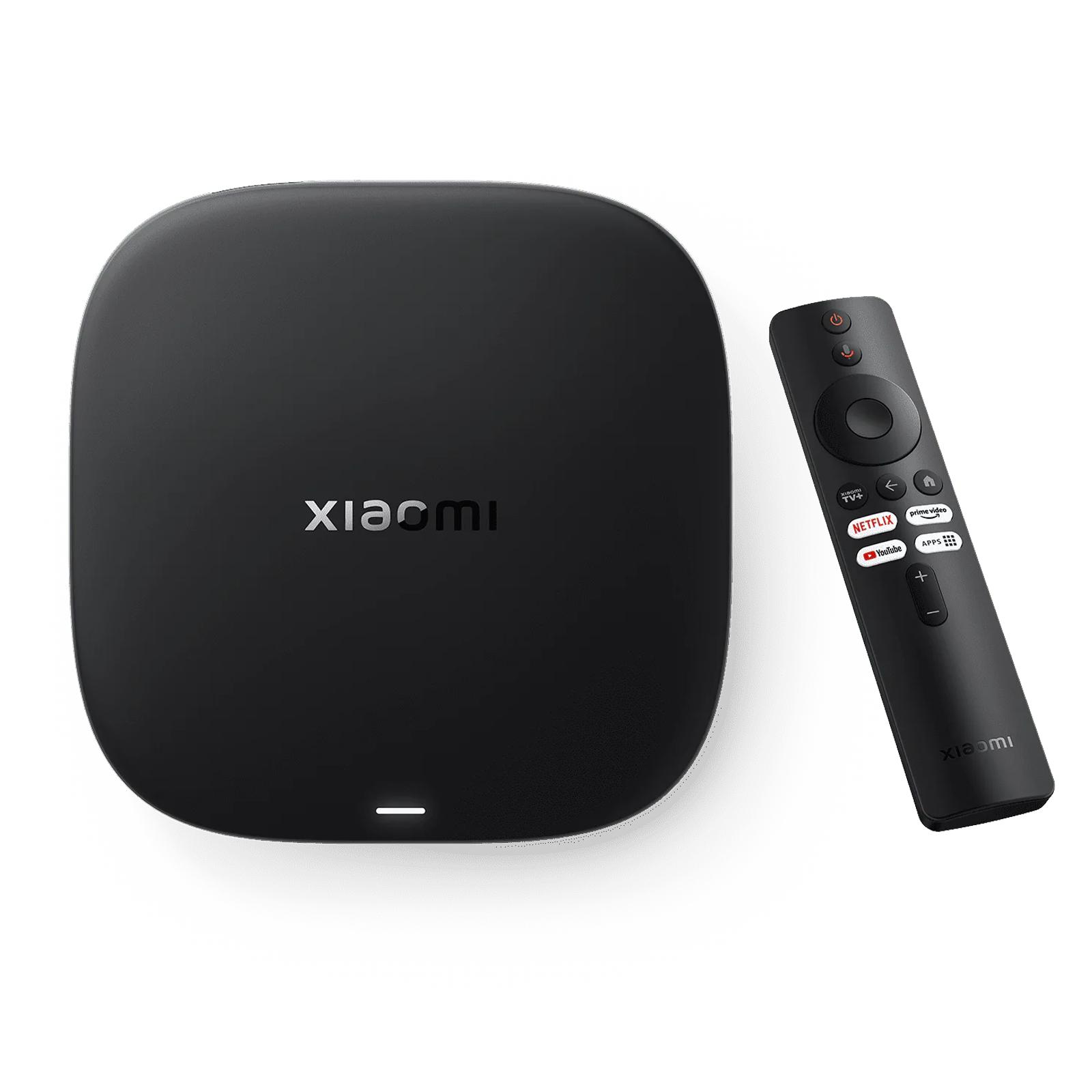
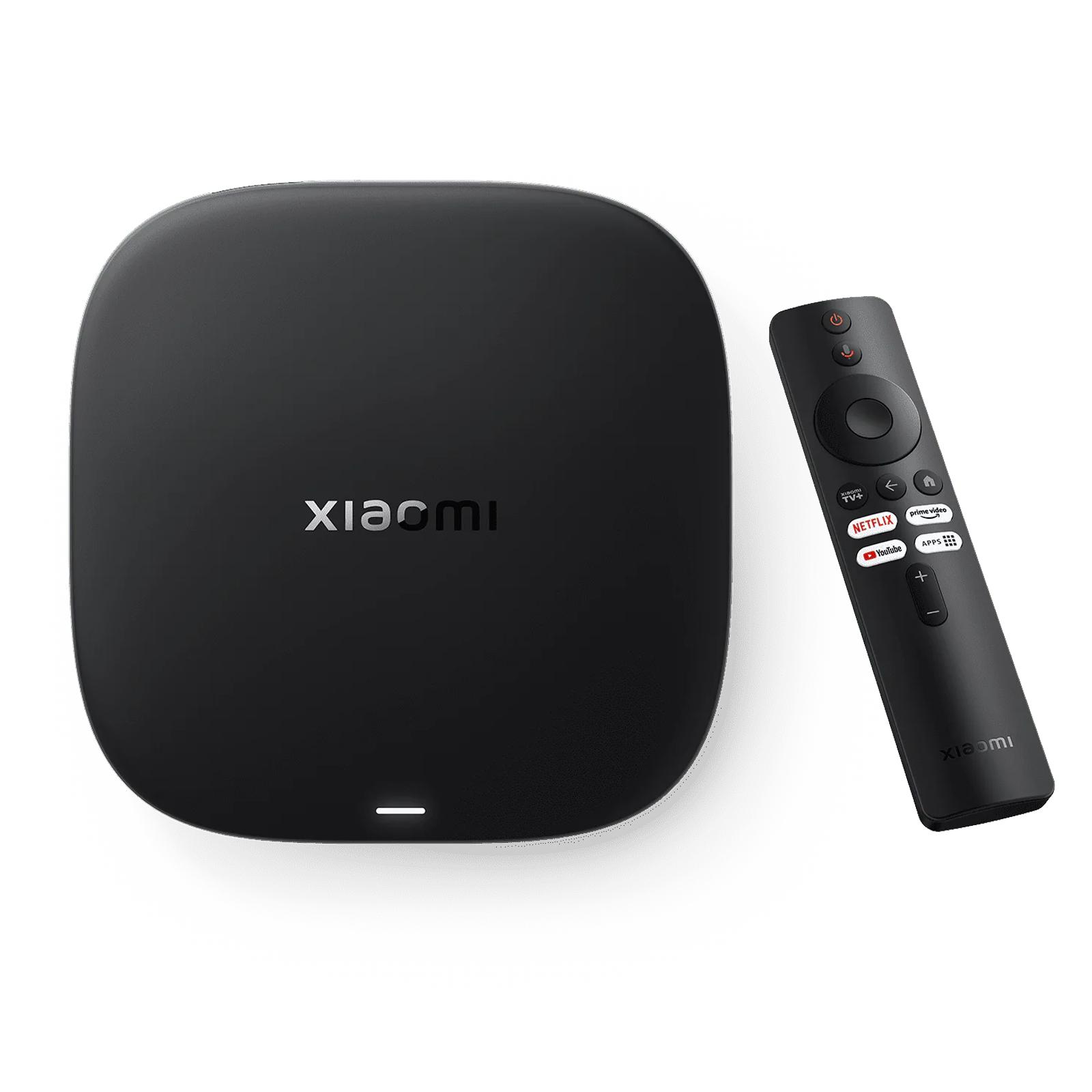
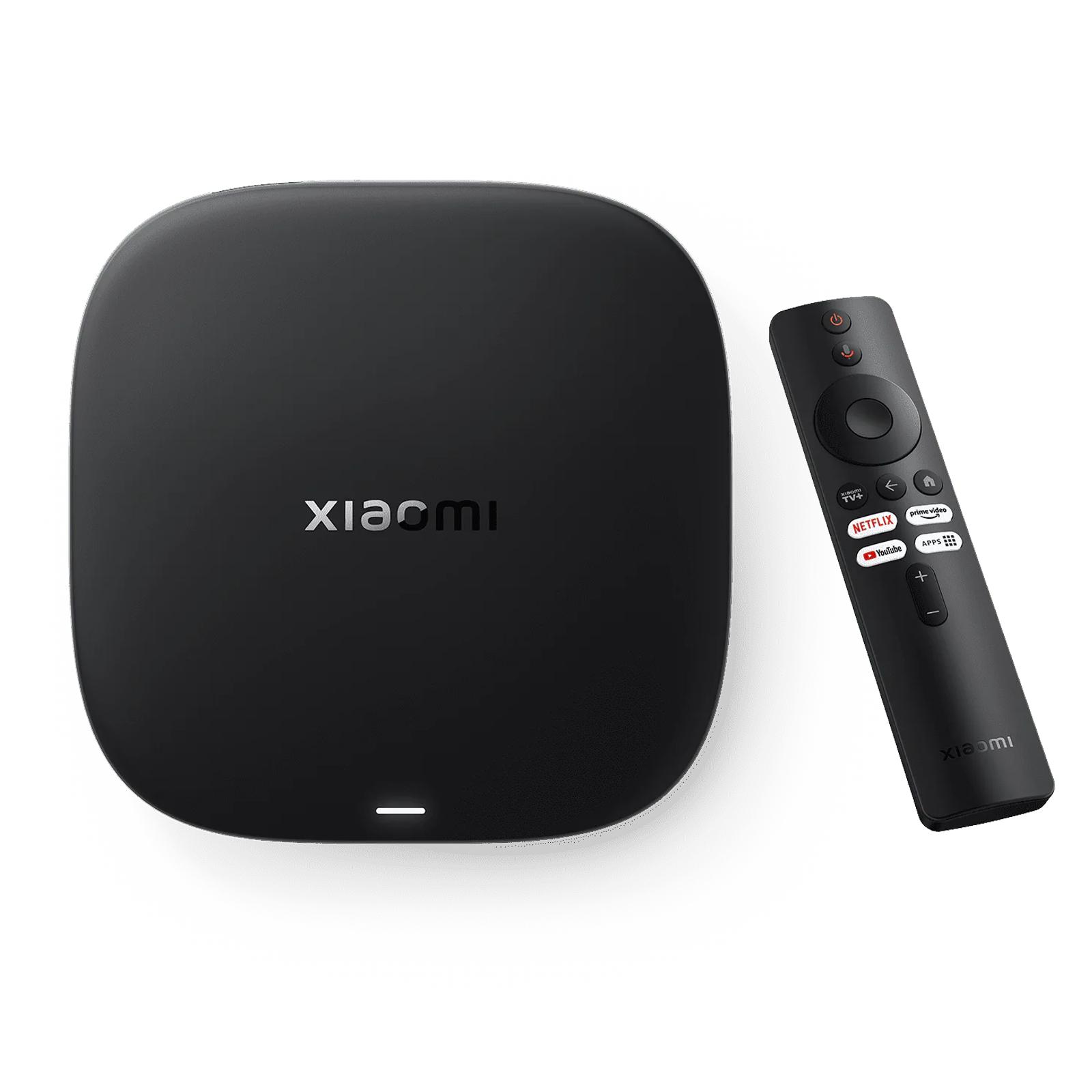
And if the TV is already so slow that cleaning won’t even help, it’ll be cheaper to connect a TV box to it than to buy a new TV. A good choice is, for example, the Xiaomi TV Box S (3rd generation) with Google TV, which you can find in Slovak stores too.
Xiaomi TV Box S 4K (3rd Gen)

TIPExpress delivery from the Polish warehouse with no customs duty and VAT.
This product will be delivered to you express from a local Polish warehouse. Shipping from Poland usually takes 7-10 days and is handled by a courier. When it arrives, you don’t pay any extra fees—no customs duty or VAT.


TIPExpress delivery from the Slovak warehouse within 1 - 3 business days.
This product will be delivered to you express from a local Slovak warehouse. Delivery usually takes 1-3 business days, and it’s handled by a courier. The price is final.

TIPWith Standard Shipping via GShopper, you pay no extra fees—everything is already included in the price!
At the GShopper retailer, we recommend choosing Standard Shipping, where you won’t have to pay anything extra. Customs duties and any VAT will be handled directly by the seller. Shipping can be selected only at checkout, after entering the delivery address. Delivery with this shipping method usually takes around 15 business days from dispatch from the warehouse, but it may take longer.
Our extra service with VIP support — we’ll handle the order on Gshopper for you and ship it straight to your address.
If you’re not experienced with shopping on Gshopper, your payment won’t go through, or the coupon just isn’t working, we offer our readers and customers a service where we place the order directly to your address. You send us the money by bank transfer, and we’ll order the product straight to you. That way, you don’t have to worry about failed payments or coupon issues, and you can be sure the whole order will go 100 % smoothly. Plus, you automatically get our VIP support — we handle any shipment issues for you and help with claims too. The fee for this service is €15 on top of the product price. You can contact us by email at info(@)chinaplanet.sk or on Messenger, where we’re active all the time.
Want to try it?
We’re wondering how many of you are willing to clean your TV with AI. Vote in the poll and see the results right away.
Want to try cleaning your Android TV with Claude Code?
Follow the China Planet website, subscribe to our monthly newsletter, and be sure to check out our Facebook page, the China Planet group, and join our Telegram, where we add the best offers and coupons from China every single day.
Don’t miss the best coupons 📩
Subscribe and we’ll email you new coupons before they expire. We only send it once a month — no spam.


