


Review: MoesHouse thermostatic radiator valve head
Our editorial rating is based on product testing.
- clear color display
- manual control with a rotating sleeve replaced the impractical touch controls from the older generation
- metal ring for mounting onto the radiator valve
- nicer, more clear app interface
- with the WiFi version we don’t need a gateway
- less precise measurement of the current temperature, since the temperature sensor is on the head itself
- not very good packaging and plastic that looks rather cheap
We’ve already tested the thermostatic radiator valve head from the Chinese brand MoesHouse. It’s a smart device that helps you save on heating, but the first version had certain drawbacks. The new MoesHouse thermostatic radiator valve head brings a few changes that we’ll look at together.
In our detailed review, we’ll introduce you to the novelties this thermostatic head offers, walk you through pairing it with the app and all its functions. Of course, you’ll also get our personal experience after intensive use at home.
Where to buy the MoesHouse thermostatic radiator valve head?
These thermostatic heads from MoesHouse are currently available on the AliExpress online marketplace directly from the Chinese warehouse. The great news is free and fast delivery, so you can expect them at home within already during the 15 working days from dispatch.
MoesHouse Thermostatic Valves WiFi/ZigBee

TIP15-day delivery via Aliexpress Standard Shipping
For this product, Aliexpress Standard Shipping is available with guaranteed delivery within 15 days. It’s the most reliable delivery method and, in most cases, it’s handled by a courier company. The 15-day delivery is something we actually tested.
When you order from a Chinese warehouse, AliExpress adds a customs duty charge of approximately 3,70 € per order to your cart. When you receive the shipment, you won’t have to pay anything extra.
TIP15-day delivery via Aliexpress Standard Shipping
For this product, Aliexpress Standard Shipping is available with guaranteed delivery within 15 days. It’s the most reliable delivery method and, in most cases, it’s handled by a courier company. The 15-day delivery is something we actually tested.
When you order from a Chinese warehouse, AliExpress adds a customs duty charge of approximately 3,70 € per order to your cart. When you receive the shipment, you won’t have to pay anything extra.
TIP15-day delivery via Aliexpress Standard Shipping
For this product, Aliexpress Standard Shipping is available with guaranteed delivery within 15 days. It’s the most reliable delivery method and, in most cases, it’s handled by a courier company. The 15-day delivery is something we actually tested.
When you order from a Chinese warehouse, AliExpress adds a customs duty charge of approximately 3,70 € per order to your cart. When you receive the shipment, you won’t have to pay anything extra.
TIP15-day delivery via Aliexpress Standard Shipping
For this product, Aliexpress Standard Shipping is available with guaranteed delivery within 15 days. It’s the most reliable delivery method and, in most cases, it’s handled by a courier company. The 15-day delivery is something we actually tested.
When you order from a Chinese warehouse, AliExpress adds a customs duty charge of approximately 3,70 € per order to your cart. When you receive the shipment, you won’t have to pay anything extra.
TIP15-day delivery via Aliexpress Standard Shipping
For this product, Aliexpress Standard Shipping is available with guaranteed delivery within 15 days. It’s the most reliable delivery method and, in most cases, it’s handled by a courier company. The 15-day delivery is something we actually tested.
When you order from a Chinese warehouse, AliExpress adds a customs duty charge of approximately 3,70 € per order to your cart. When you receive the shipment, you won’t have to pay anything extra.
TIP15-day delivery via Aliexpress Standard Shipping
For this product, Aliexpress Standard Shipping is available with guaranteed delivery within 15 days. It’s the most reliable delivery method and, in most cases, it’s handled by a courier company. The 15-day delivery is something we actually tested.
When you order from a Chinese warehouse, AliExpress adds a customs duty charge of approximately 3,70 € per order to your cart. When you receive the shipment, you won’t have to pay anything extra.
Technical specifications
| Manufacturer | MoesHouse |
|---|---|
| Dimensions | 97.4 x 52.4 x 52.4 mm |
| Power | 3 x 1.5 V AA batteries |
| Protocol | WiFi |
| IP protection | IP20 |
| Operating temperature | 0 – 50 °C |
| App | SmartLife / TUYA |
| Display | yes |
The packaging didn’t impress us
The thermostatic radiator valve head from MoesHouse arrived from AliExpress in a small box packed in a standard plastic sleeve. However, after unpacking, we were greeted with an unpleasant surprise. Inside the box, the head was placed without any additional protection, directly in the cardboard, and it was even slightly scratched. At first glance it looked as if someone had already been using it, and overall the packaging felt very cheap and low-quality.


Besides the head, the package also includes adapters for connecting to the radiator with different valves, as well as an instruction manual. So the first impression wasn’t very good, but the product’s packaging matches its price.

Design and build quality
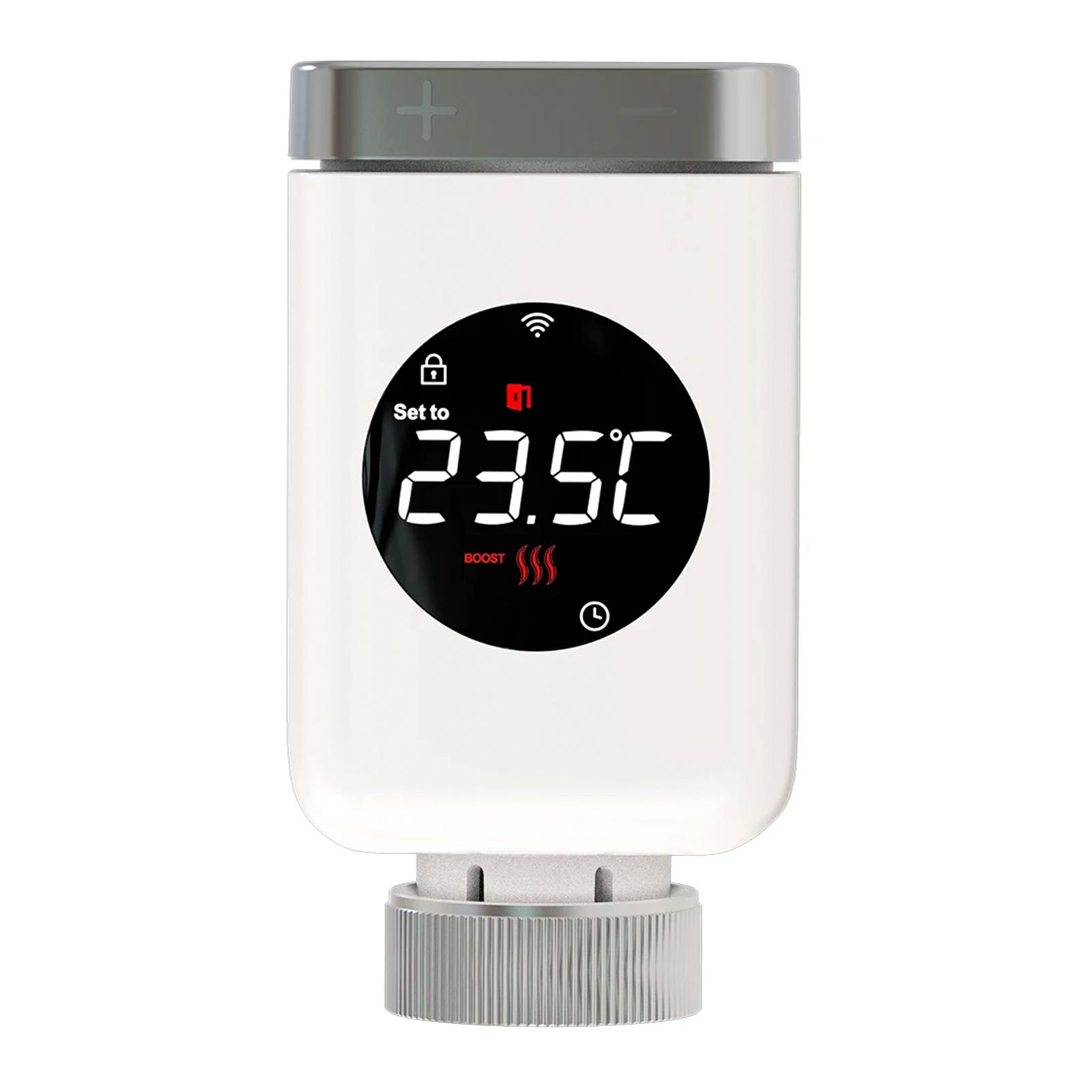
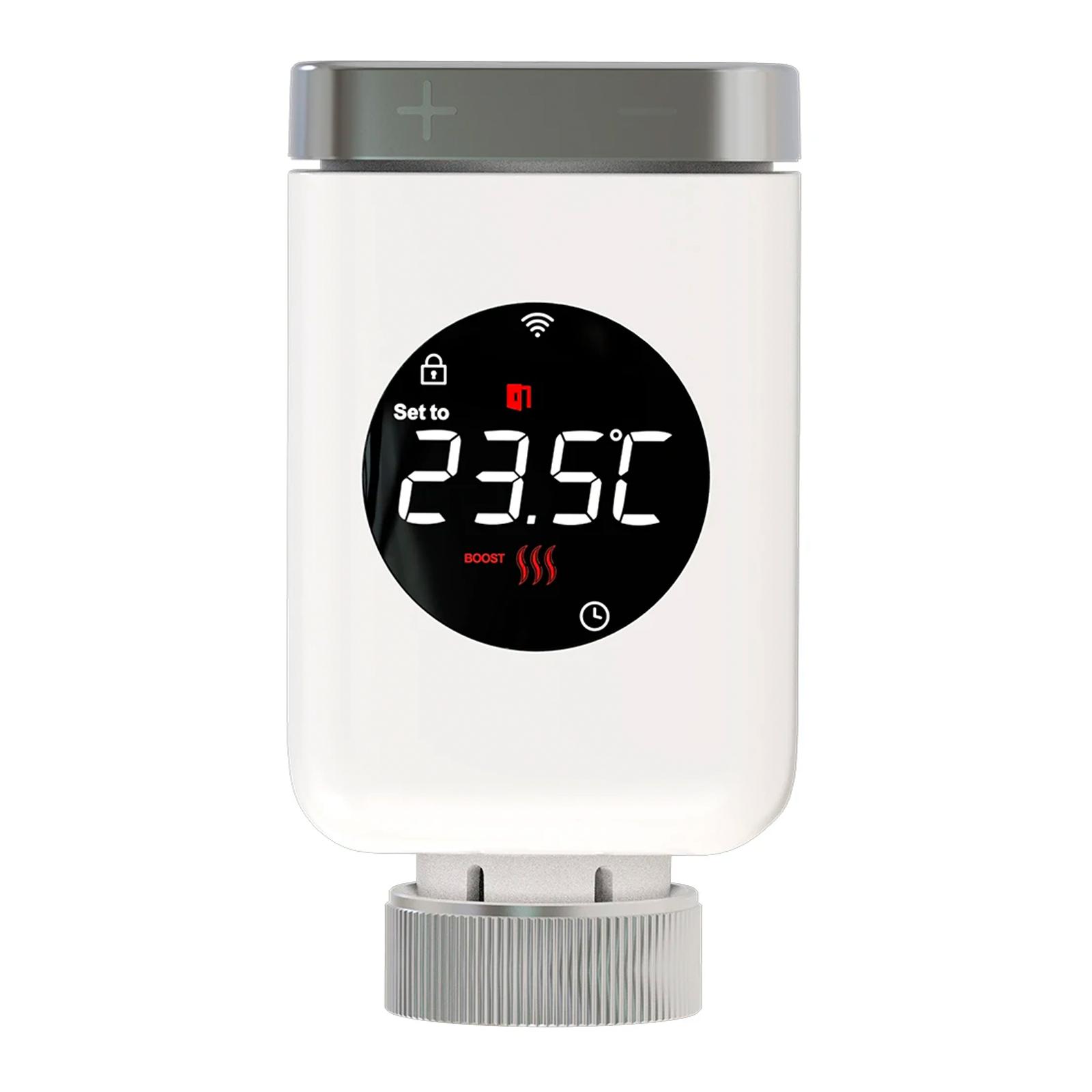
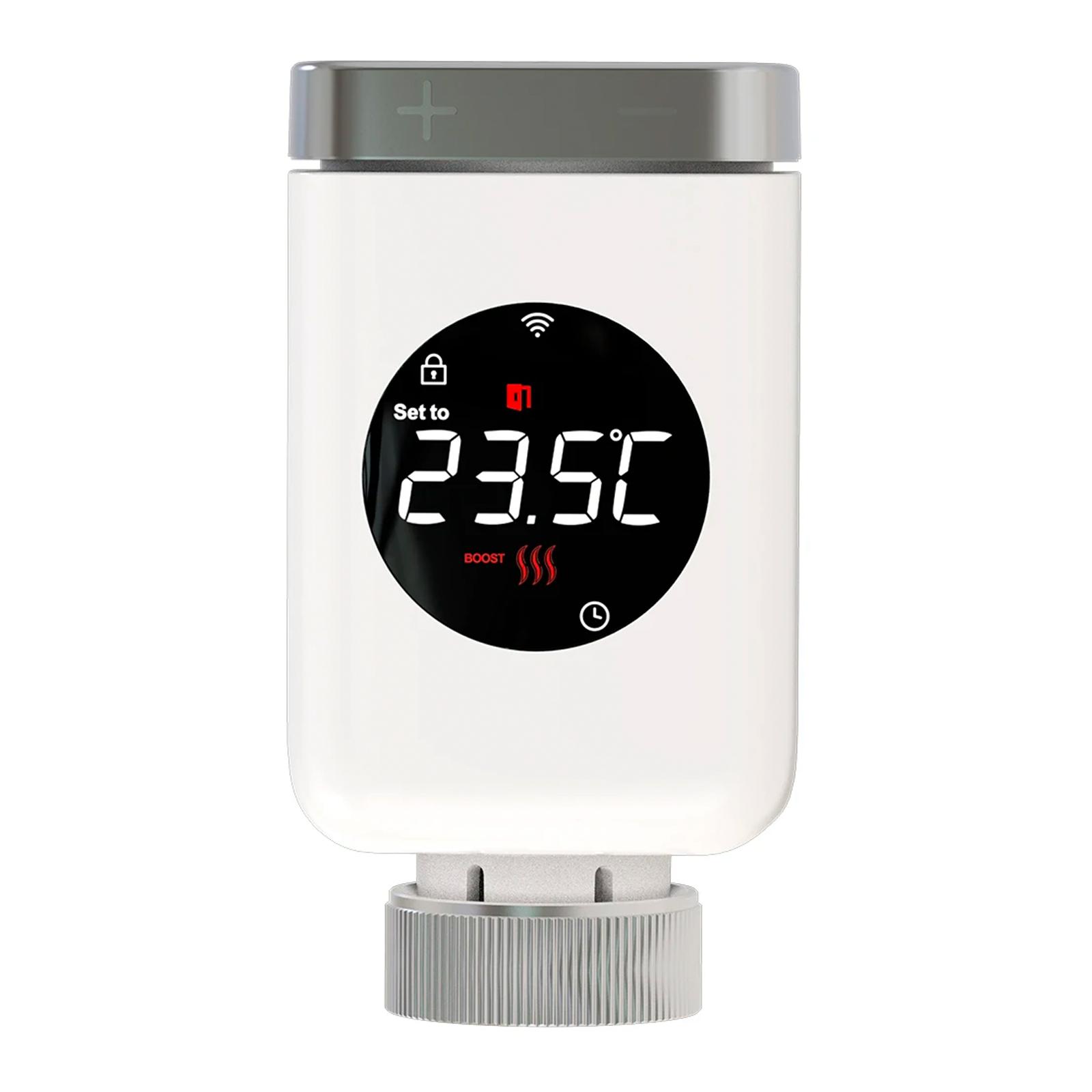
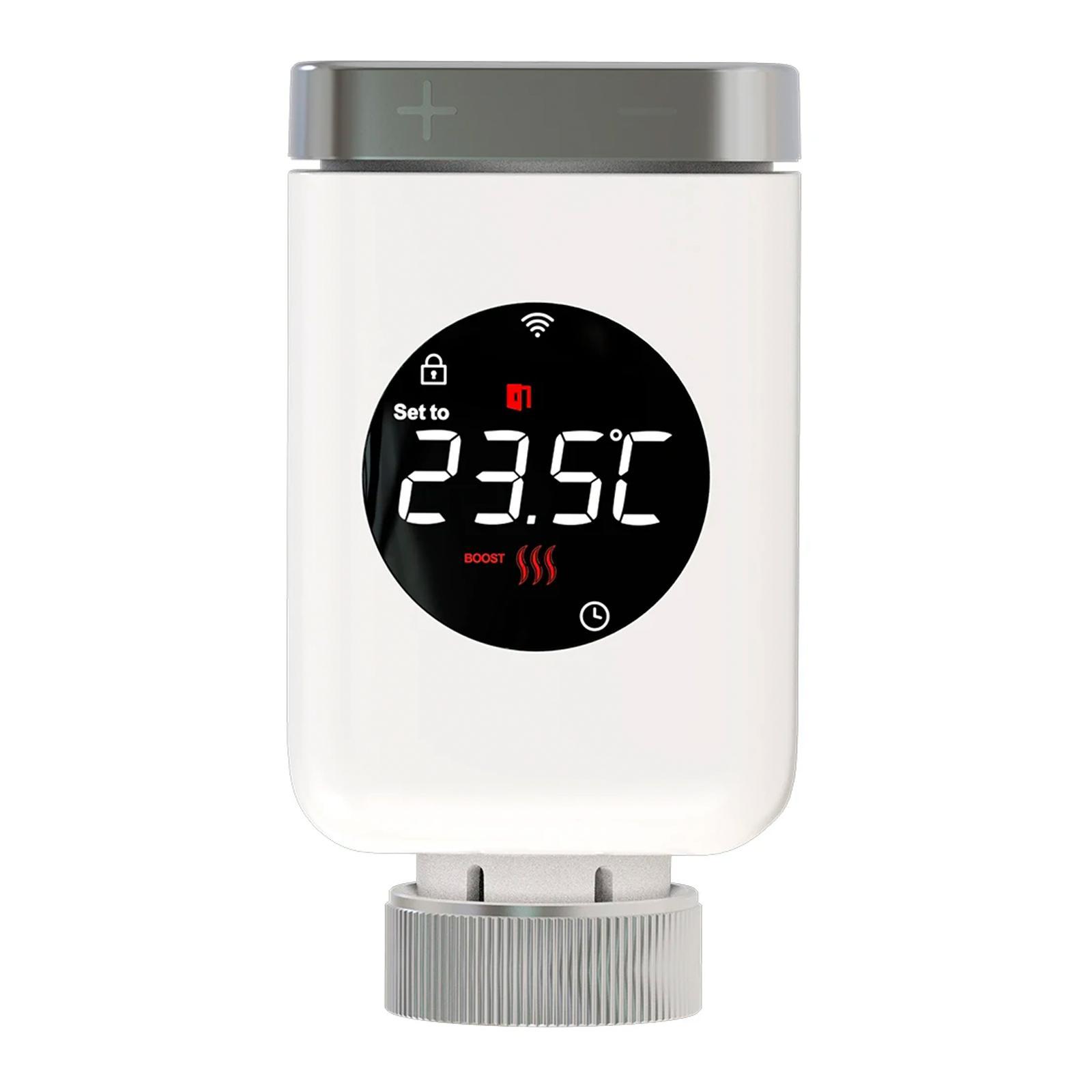
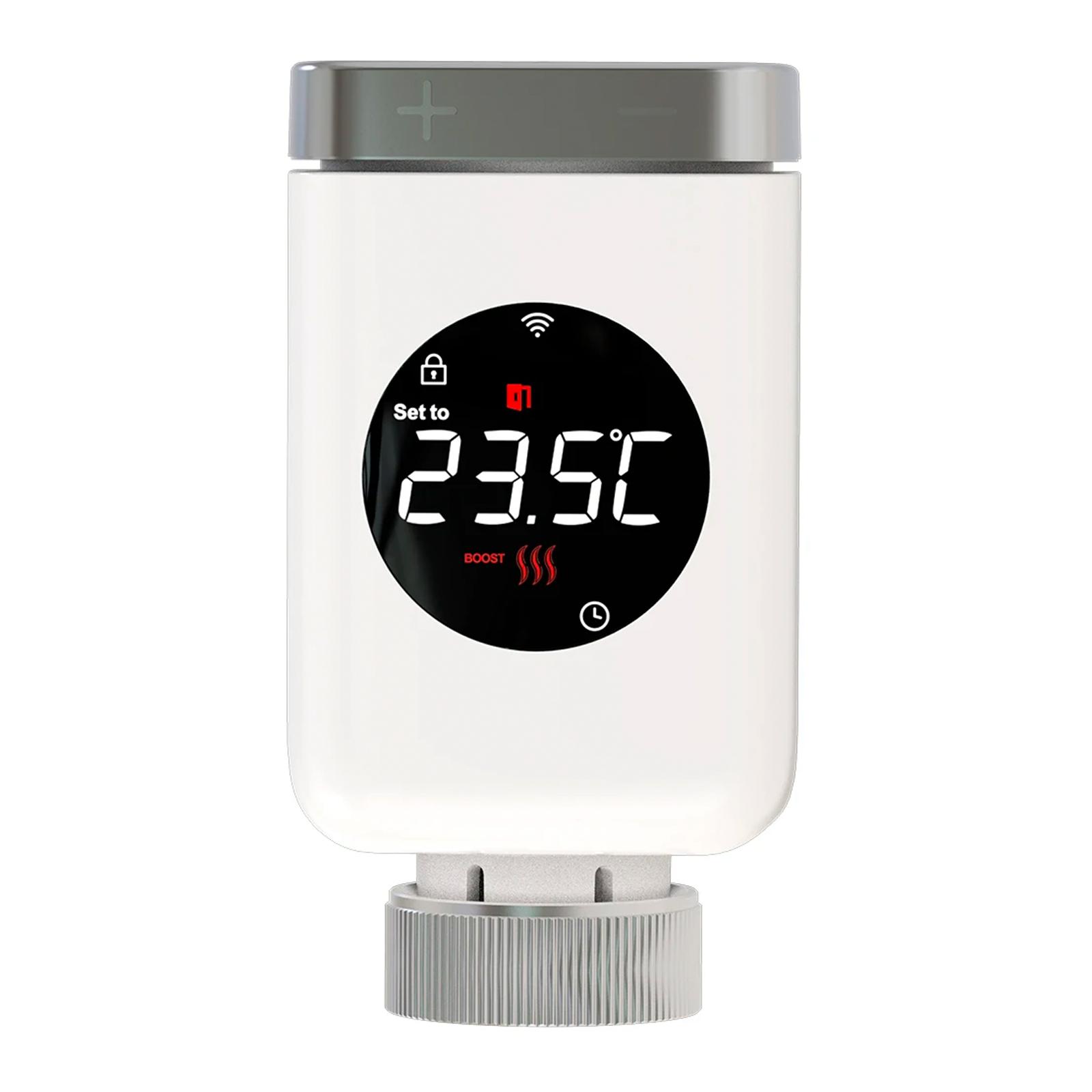
In terms of design, the new MoesHouse thermostatic head is significantly different from the first one we tested some time ago. On the front, a round, colorful, and fairly large display takes center stage.

This time we don’t have touch buttons for control, but there is a rotating element with a button function, which lets us set the temperature manually. We rate this change positively, because the touch controls on the older model weren’t very convenient and sometimes didn’t respond to touches.
Another positive change is the rotating ring for the valve, which is finally made of metal this time, unlike the older model where it was plastic. However, the rest of the head is plastic too, and the overall quality is more average.

This thermostatic head probably wouldn’t win any design awards, but let’s look at the most important part—how it works.
Easy installation and pairing with the app
One of the novelties is the WiFi version of the thermostatic head, which we’ve just tested. Unlike the older model, where only a ZigBee version was available, which also needed a gateway for it to work, for the WiFi version we don’t need anything like that.

The head connects directly to our home WiFi network, without the need for any additional device. It works with the SmartLife or TUYA app. We used the SmartLife app.
In the included manual, you’ll find concise and clear instructions for the initial power-on, installation, and pairing with the app in English. The first steps led to mounting the head itself onto the radiator. We didn’t need any of the adapters, so we simply screwed the head onto the radiator valve.

Next, we inserted the batteries and waited until Ins appears on the display. When Ins disappears from the screen, we slightly tightened the matrix. By pressing the top button, AdA will show on the display, when the head adjusts the valve and then switches to the standard temperature display. For switching to pairing mode, we have 2 options. One is pressing the SET button under the cover on the battery compartment.

The second option is to hold the rotary dial in the position counterclockwise until OFF appears on the display. Then it’s enough to hold the center button for a few seconds to get into pairing mode.
After that, you just need to select adding a new device in the app, which will search if a device is nearby to the smartphone. Here we enter the password from our WiFi network and the rest of the process runs quickly and automatically.
Temperature setting
For setting the desired temperature, you have two options. The first is the manual rotary dial directly on the thermostatic head, and the second is the SmartLife app.

When using the rotary dial, we can regulate the temperature in steps of 0.5 °C up and down. It’s the same in the app. Here too, we don’t have the option to set the temperature in smaller steps.
The downside of such heads is measuring the current temperature. Since the temperature sensor is located on the head, the value isn’t very accurate. However, we can adjust it in the app settings using room temperature calibration from – 10 to + 10 °C from the currently measured value in steps of 0.1 °C.

So if the head measures 25 °C in the room, but the actual temperature is 23 °C, then in calibration we select -2. In this way, the thermostatic head will always offset by 2 degrees from the measured value.
Unfortunately, even with calibration we couldn’t set the temperature so that it was always perfectly accurate. Despite calibration, the real temperature sometimes differed by several tenths up to a whole degree.

For more accurate measurement, we would need the head to be able to pull the current room temperature information from an external thermometer. However, such a function isn’t supported. We can partly get around it via smart scenes in the SmartLife app, which we’ll cover in some of the next chapters.
The app and its interface
On the app’s home screen, we see our smart devices that we’ve paired, grouped by individual rooms. We also still have the older head from MoesHouse here.


After we select a new head (WiFi Smart Thermostat), its graphical settings interface will appear. The dominant element is the circular dial of the current temperature, under which you’ll also find basic information about the current mode, status, and window.
Below that, there are four small icons used to change the mode, scheduling, go to settings, and display statistics.
Modes and weekly scheduling
The mentioned modes offer Auto, Manual, OFF and ON. The auto mode is governed by the scheduler, which we’ll talk about in a moment. The manual mode heats to a fixed temperature set via the app or on the head, and OFF and ON modes are only for completely turning the heating off or on with the valve fully open.


Weekly scheduling gives us the option to set the desired heating temperatures separately for each day of the week. At the same time, in each day we choose four times at which we set the desired temperature. Default times are 6:00, 12:00, 18:00 and 22:00. Of course, we can change the times with minute-level precision, and we can regulate the temperature in steps of 0.5 °C.
Unfortunately, the app doesn’t allow adding more than the mentioned 4 time slots. With the previous version of the MoesHouse head, we had 6 time slots available, but the temperature could only be regulated in whole-degree steps.


If we want to choose the same settings for all days of the week, or copy at least some of them, we do it simply by holding the day we want to copy and then selecting the days we want to apply the same settings to.
What happens if the head is in automatic mode and we change the temperature manually on the head? In this case, we enter a temporary manual mode, where the manually set temperature is held only temporarily—until the next temperature change set for the current day in automatic mode. At that moment, it switches back to AUTO mode.
Settings
In the settings, you’ll find several customization options, as well as a sort of status bar showing the current valve openness in percent, the window status, the set calibration, and the battery percentage status.


The first option in the settings is to turn the open-window detection function on or off. If the room temperature suddenly drops by at least 1.5 °C within 4.5 minutes, this function closes the radiator valve for 30 minutes. Then, after 30 minutes or after the temperature rises again by 1.5 °C within 4.5 minutes, it turns the heating back on. In reality, it doesn’t work very well.
The second option is to activate the child lock, so the kids can’t change the selected temperature manually using the rotary dial. Additional settings define the limit for the minimum and maximum temperature, which we can set. The minimum temperature can be 5 °C and the maximum up to 35 °C.

It makes sense to set the limits so that we can’t accidentally set a lower or higher temperature than what we normally use. If we set the maximum to 25 °C, we can regulate the temperature on the head or in the app only within this range up to 25 °C.
Another option is setting the aforementioned calibration of the measured temperature, and the last free option is advanced settings.
Advanced settings and system mode
In the advanced settings, we can choose the brightness level of the display in three levels, and rotate the display data in all four directions, so the information is always readable for us—no matter how the head is positioned on the radiator.


More interesting, however, are the settings in system mode, which directly affect battery life. The default is the saving mode, where we define an offset on the scale from 0.5 to 5 °C in steps of 0.1. In this mode, the head turns the valve on and off (at 0 or 100 %) depending on the selected temperature, so that the resulting temperature stays within the set offset.
In this mode, the radiator doesn’t heat constantly, but it always turns on and off—so the MoesHouse thermostatic head should achieve savings.


The second one is comfort mode, where we don’t set any offset anymore, but the head tries to keep the set temperature as precisely as possible. During that, it continuously adjusts the valve opening based on current needs. This mode uses more energy, so the batteries in the head last for a shorter time.
You can also see how each mode works in the status bar in the settings, where the radiator valve opening is shown as a percentage. While in saving mode you’ll see 0 or 100 %, in comfort mode the valve opening moves in percentages in steps of 1 %.
Our experience and comparison with the older version
In the review, we tried to focus especially on the questions you asked on social media, because thermostatic radiator heads are quite popular at the moment.

So we’ll share a few more of our experiences as well. Compared to the first version of the head, which we also tested, we have a better feeling from the new version. Control via the manual rotary dial is much more convenient than using touch buttons.
The older version also had a poorly solved battery cover that broke very easily. Here, the cover simply slides out, and when closed it snaps neatly back into place. We also appreciate the use of a metal thread for attaching to the valve.


With the older version, it would sometimes happen that we manually set the desired temperature, but it somehow didn’t get saved—and after closing and opening the app, the temperature was set back to the original one, meaning it didn’t change. In turn, the app would sometimes respond incorrectly to the manual temperature change. Occasionally we noticed some bigger delay, as if there were a problem with communication between the app and the head.
Compared to the older version, unfortunately we also lost some features. For example, the so-called holiday mode is missing, which allowed us to reduce the temperature to a set number of days with just one click. Also, BOOST mode disappeared, or weekly scheduling separately for weekdays and separately for the weekend, with simple switching between them (weekdays 5+2, 7, 6+1).

Many people are probably wondering whether the motor head is audible and whether this sound is disturbing during sleep. With the room completely silent, the motor in the thermostatic head is slightly audible, and when you change the radiator valve position, it basically hums. Personally, that kind of sound didn’t bother us, and during sleep we never woke up to it. During the day, amid normal daily noise, we didn’t notice this sound at all.
Smart scenes
If you want to take your smart home to the next level, the app offers the ability to create your own custom smart scenes. Scenes are one of the most interesting features of a smart home.


For the best use of this functionality, you’ll need additional smart sensors, such as a temperature sensor, humidity sensor, or a door and window sensor, or even other smart devices.

At the moment, we only have one door and window sensor at our disposal, which we connect to our smart home using a ZigBee gateway. It’s also available in a WiFi version, but in scenes you can use devices of different types, since communication runs via the cloud.


Using the sensor, we set up a pair of scenes. One for closing the radiator valve when the sensor detects that the window is opened, and the other for returning to the automatic heating mode when the window is closed.
When creating scenes, you have all the settings of the thermostatic head available—such as changing the mode, temperature, limits for maximum and minimum temperature, calibration, child lock, or even display brightness, its orientation, and so on. You can also set the radiator valve opening in percentages, in steps of one percent.


We can create scenes even without any additional devices. The condition for triggering a scene can also be some state—for example, the battery status, or a time, or a weather change. Personally, we set a scene to automatically dim the display brightness every day at 19:00.


It’s up to you how you use these scenes. Still, it’s definitely an interesting option for a real smart home.
Battery life and statistics
The battery life of the AA trio should be weaker compared to the ZigBee version. WiFi generally uses more power, and the overall battery life also depends on whether we use the head in energy-saving mode or in comfort mode.

We used completely ordinary, cheap alkaline batteries in the head, which we bought at the supermarket (Tronic brand). After three weeks of use, the capacity dropped only minimally, and the app showed 98 % battery.
The MoesHouse thermostatic head remains connected to our radiator, so we’ll continue monitoring battery life and temperature even during the next period, and we’ll update the article later.


One of the options the app offers is statistics. The first graph shows the target and current temperature, while the second expresses the level of radiator valve opening. In the second graph, we see statistics only for the current day. The graph with the current temperature doesn’t seem very accurate to us.
MoesHouse thermostatic head: Final evaluation
The smart MoesHouse thermostatic head in its latest version offers several improvements over its predecessor. It comes with a completely new design, including a round color display, a metal grid for mounting it to the radiator valve, and a new placement of the batteries.

The impractical touch temperature controls are gone as well—they’ve been replaced with a rotary sleeve at the top part. The Moes radiator head is also available in a WiFi version, which we tested. It doesn’t need any gateway, so it connects directly to your home WiFi network.
The app environment is also new, and overall we’re happier with this head than with its predecessor. The only downside is probably the measurement of the current room temperature, which isn’t very precise, and finding a value for its calibration that won’t need to be changed again is challenging.
Don’t miss the best coupons 📩
Subscribe and we’ll email you new coupons before they expire. We only send it once a month — no spam.


